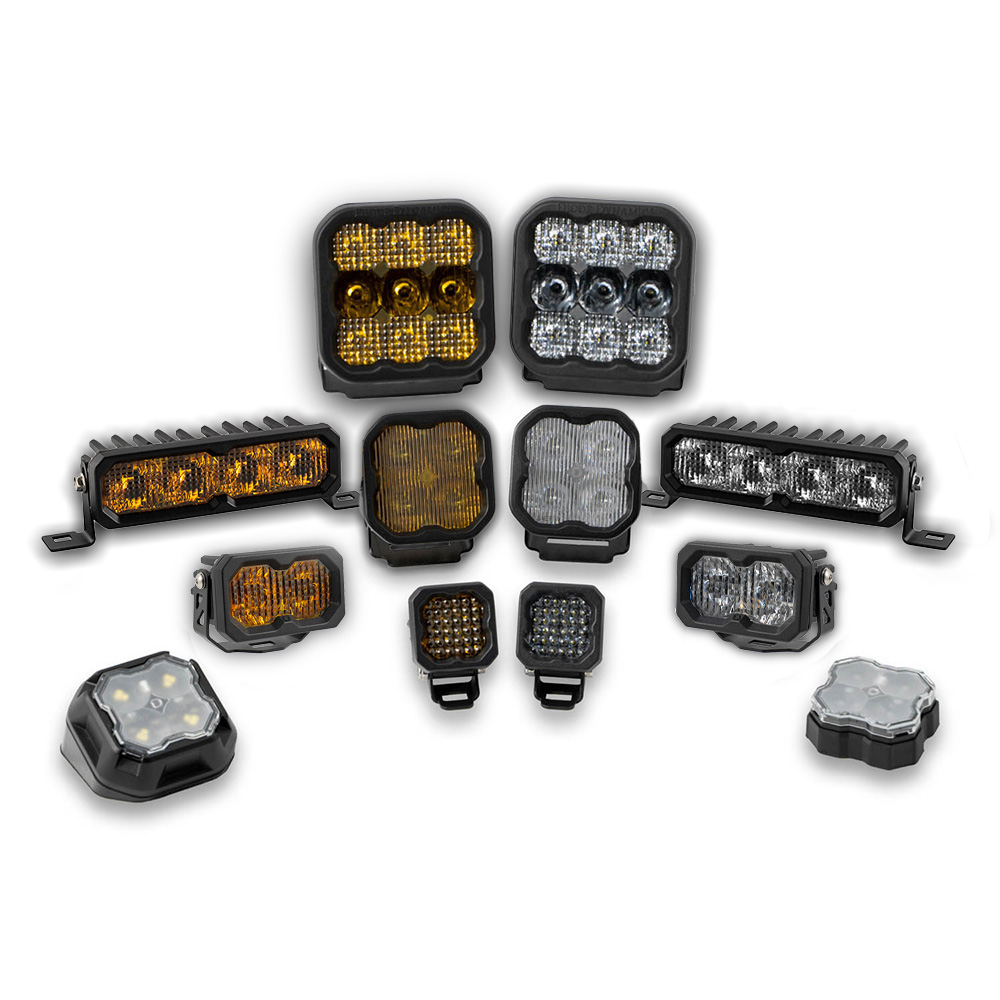
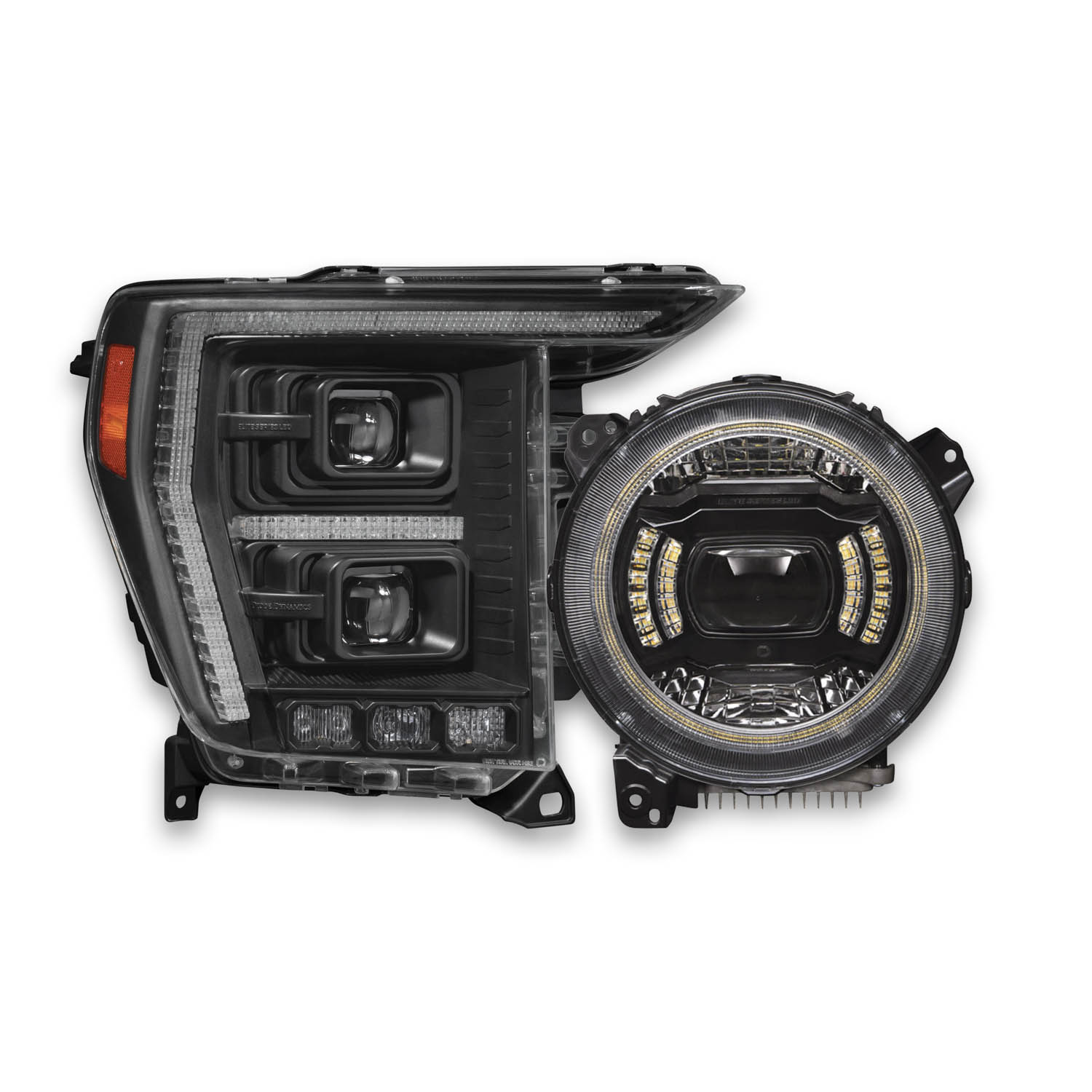
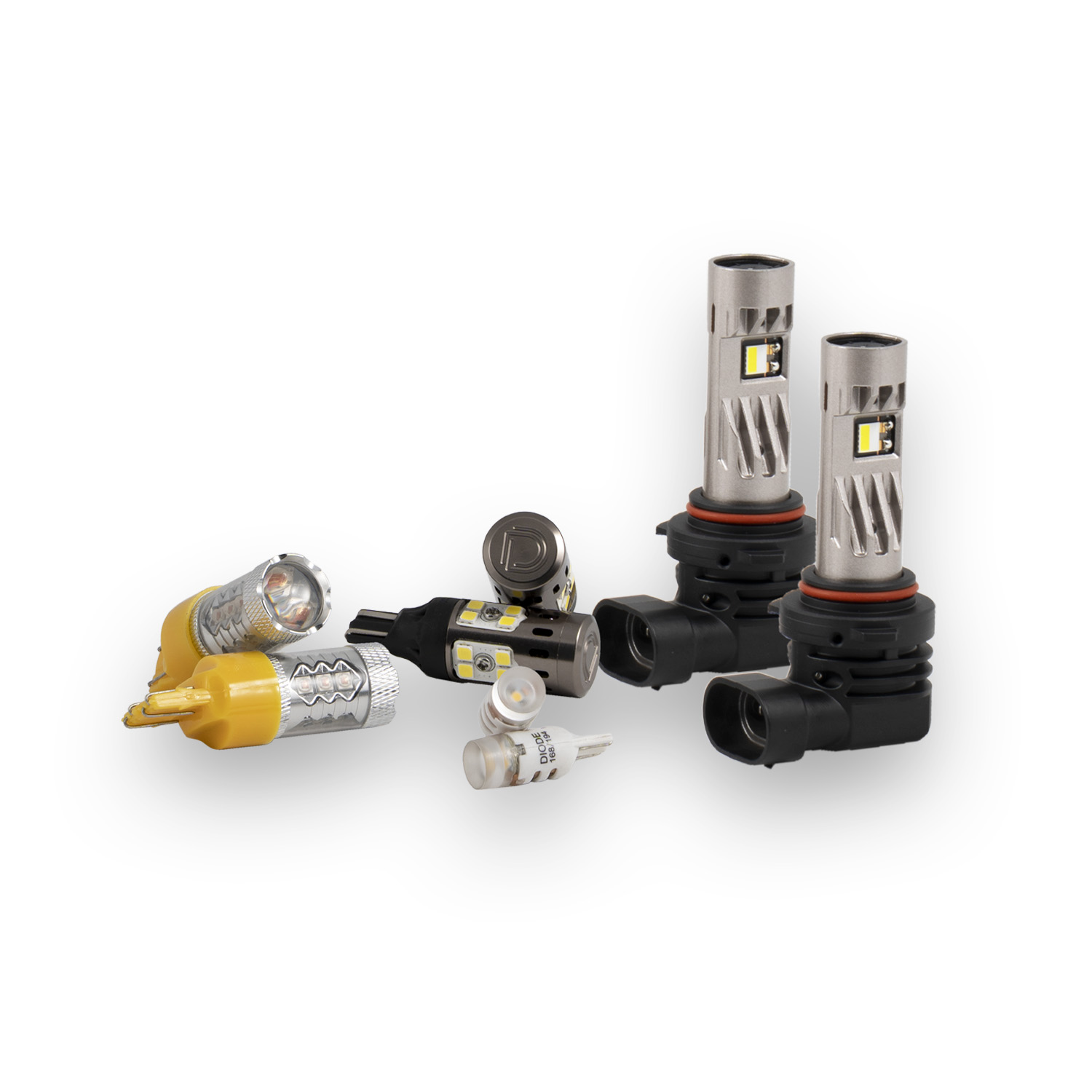
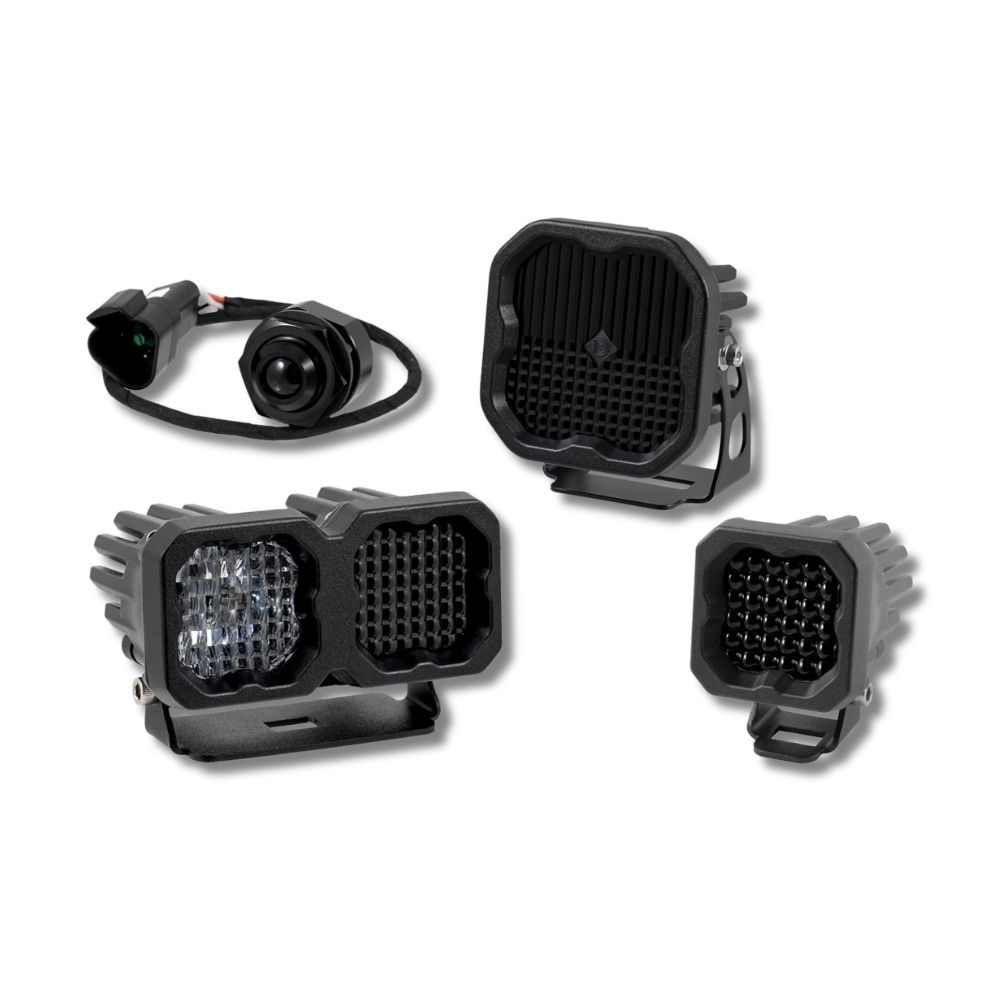






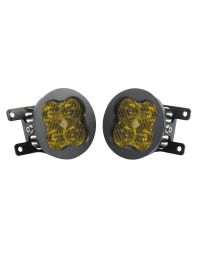
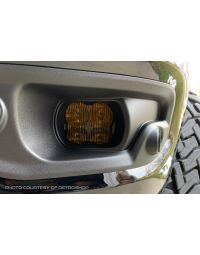
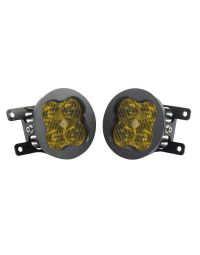
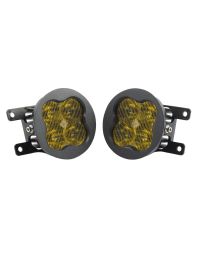
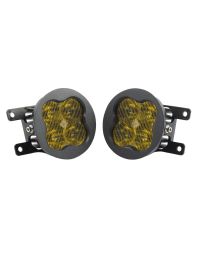
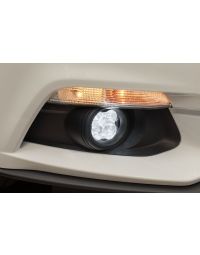
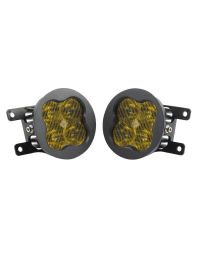
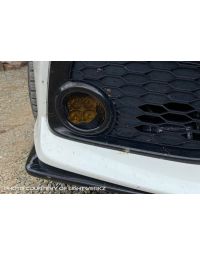
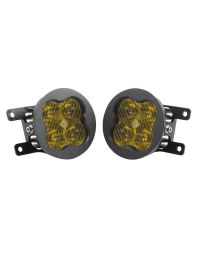
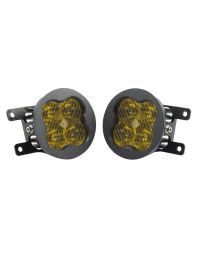
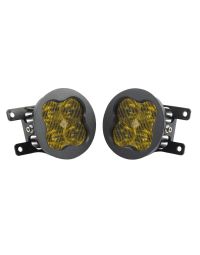
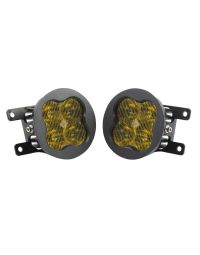
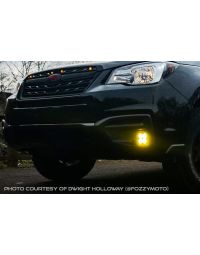
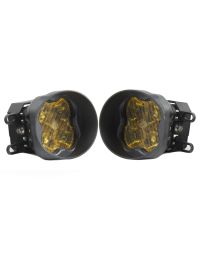
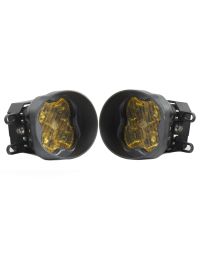
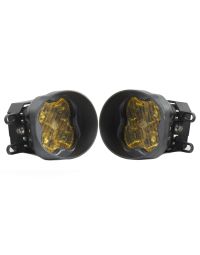
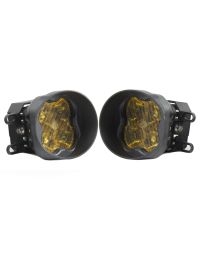
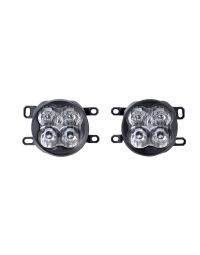
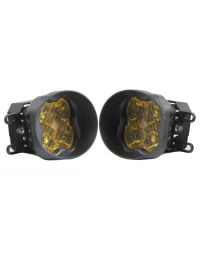
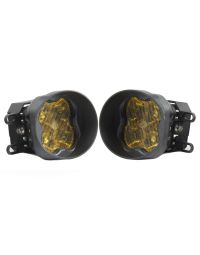
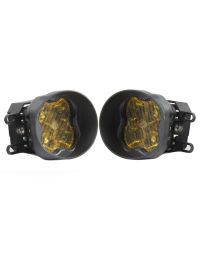
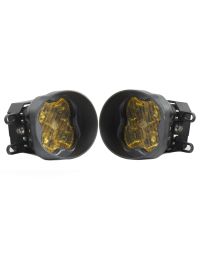
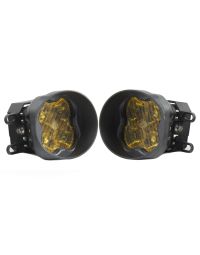
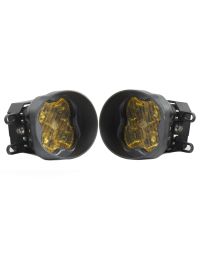
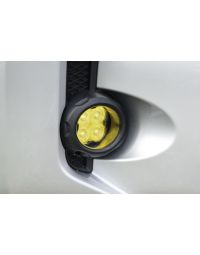
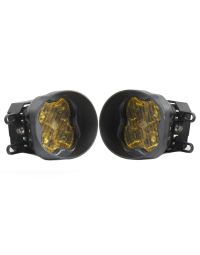
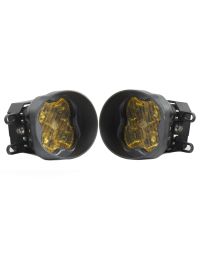
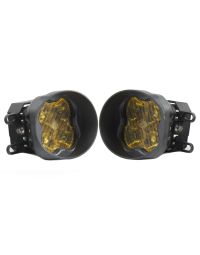
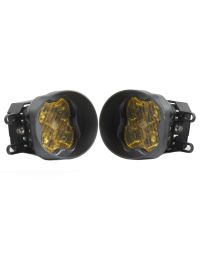
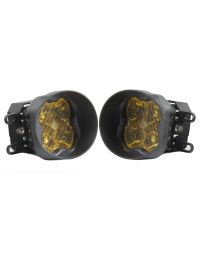
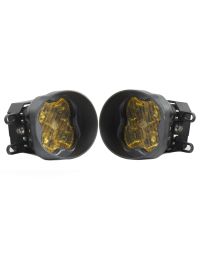
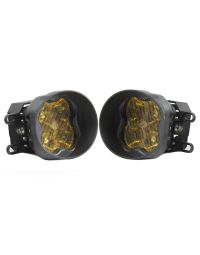
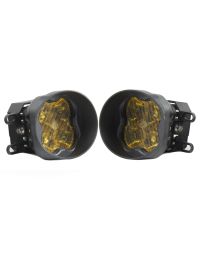
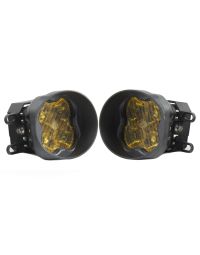
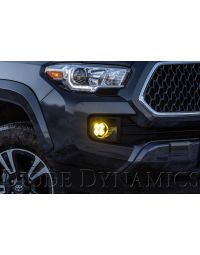
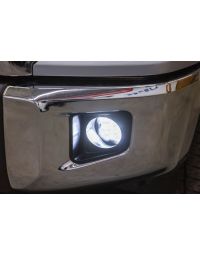
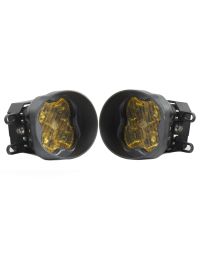
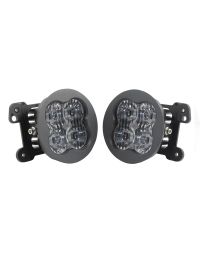
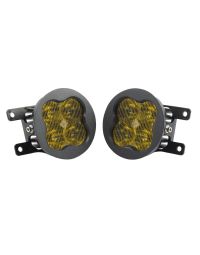
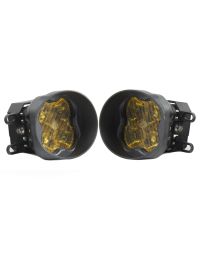
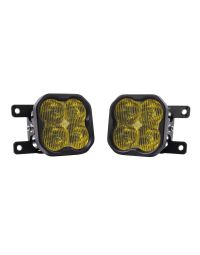
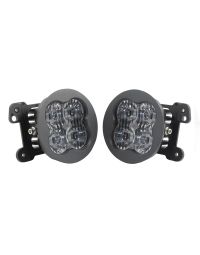
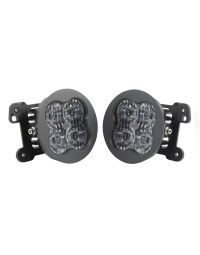
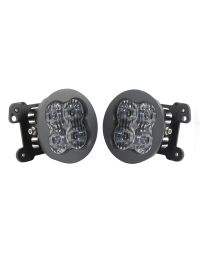
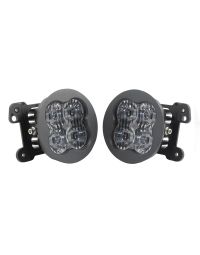
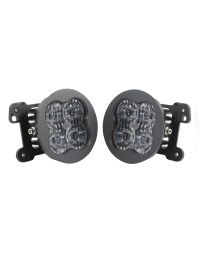
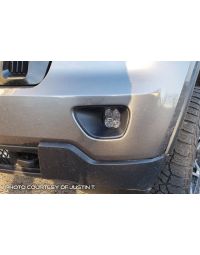
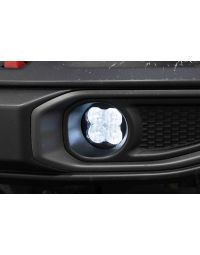
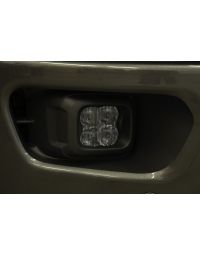
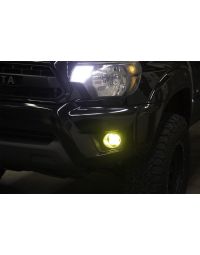
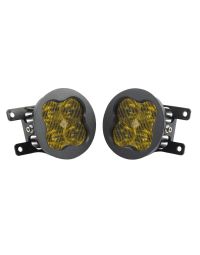
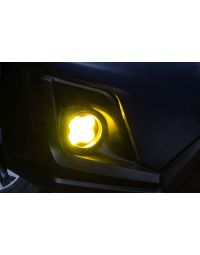
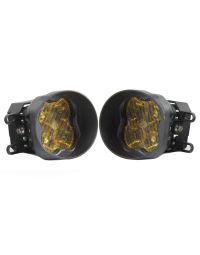
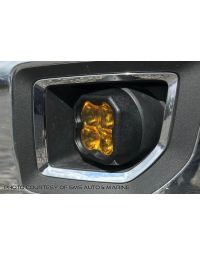
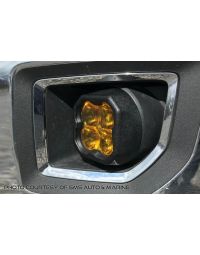
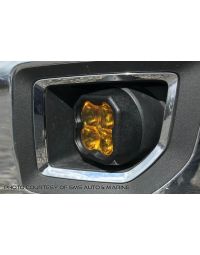
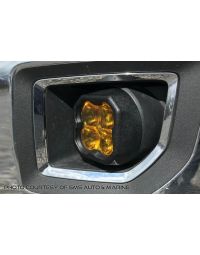
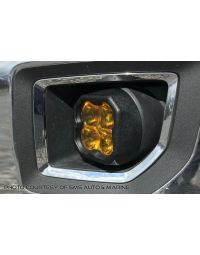
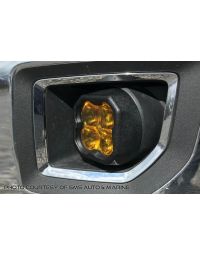
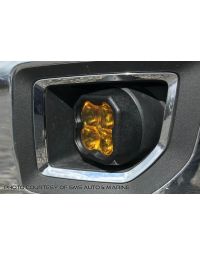
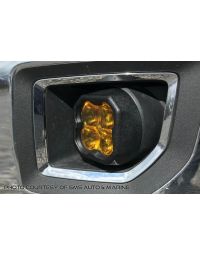
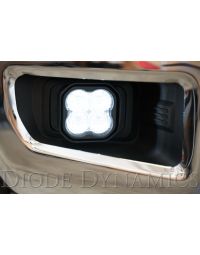
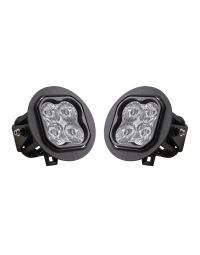
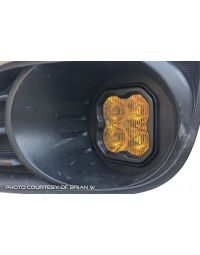
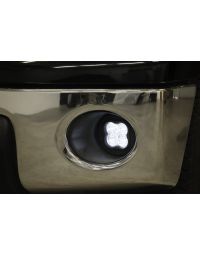
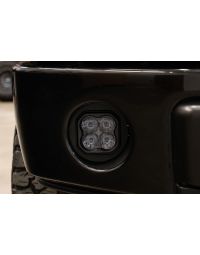
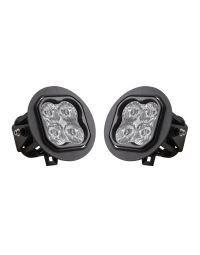
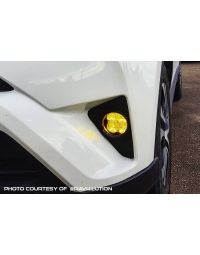
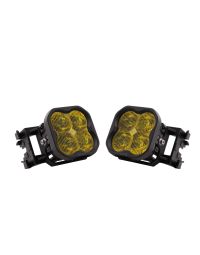
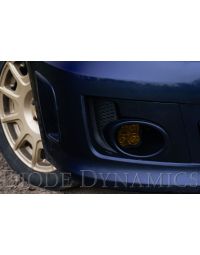
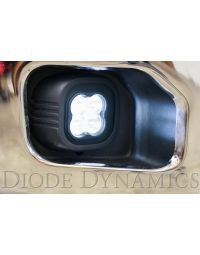
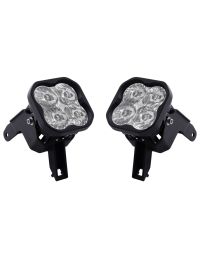
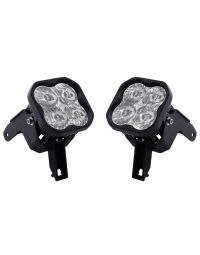
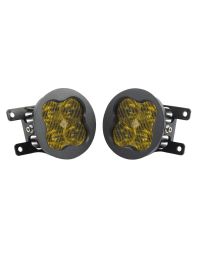
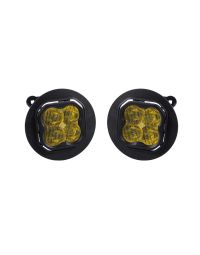
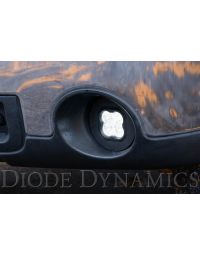
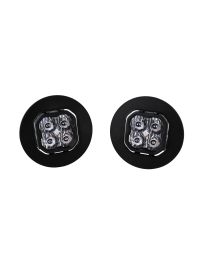
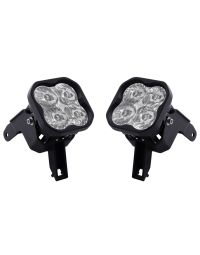
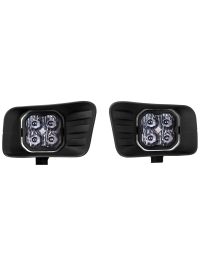
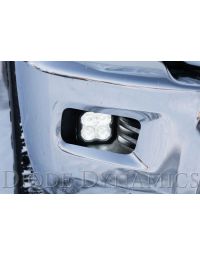
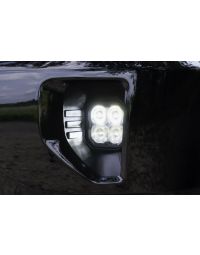
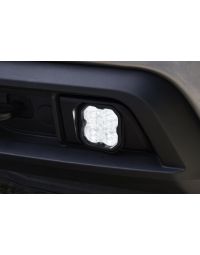
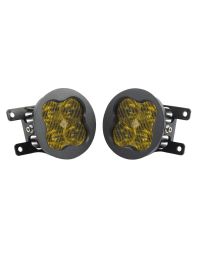
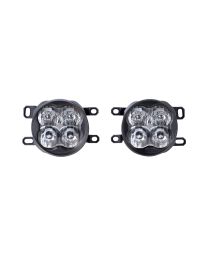
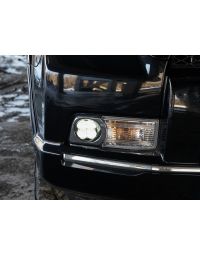
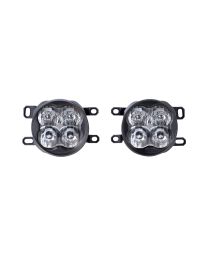
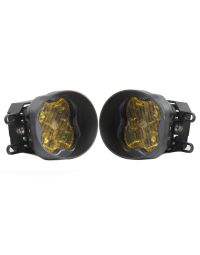
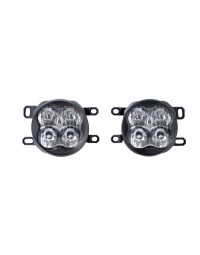
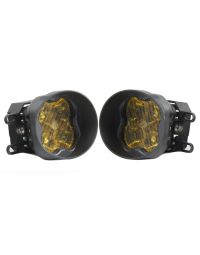
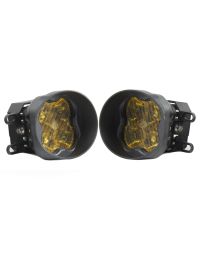
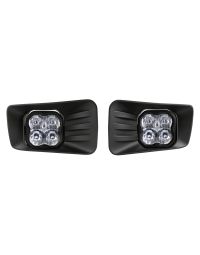
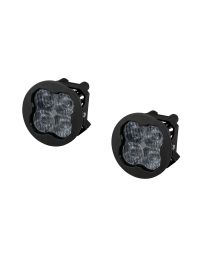
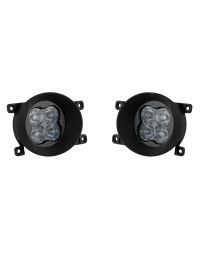
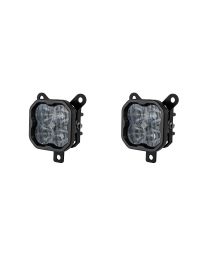
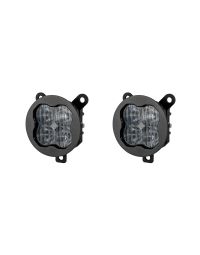
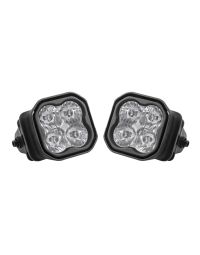
Diode Dynamics dual-color fog lights feature SmartSelect technology, allowing you to select either a white or yellow main beam using your factory fog light controls. This guide explains how to enter SmartSelect programming mode, select and save your preferred color, and reset the lamps if the programming cycle is completed without saving a selection.
Table of Contents
- About SmartSelect
- SmartSelect Programming
- SmartSelect Color Sequence
- Saving Your Selection
- Reset Mode
- SmartSelect Troubleshooting
- Questions About SmartSelect?
- Where Can I Buy Diode Dynamics Dual-Color Fog Lights?
About SmartSelect
SmartSelect technology allows compatible dual-color fog lights to switch between a white and yellow main beam without requiring an additional switch or control wire. The desired color is selected using the vehicle's factory fog light controls.
Dual-color lamps are set to the white main beam from the factory. Single-color fog light kits do not include SmartSelect programming and can skip this guide.
SmartSelect Programming
Use the following timing sequence to enter SmartSelect programming mode. Complete each ON and OFF interval within the specified time range.
- Turn the fog lamps ON for 1-3 seconds.
- Turn the fog lamps OFF for approximately 1 second.
- Turn the fog lamps ON for 1-3 seconds.
- Turn the fog lamps OFF for approximately 1 second.
- Turn the fog lamps ON for 1-3 seconds.
- Turn the fog lamps OFF for approximately 1 second.
- Turn the fog lamps ON again. On this fourth ON sequence, the lamps will enter SmartSelect programming mode and immediately switch from white to yellow.
Once programming mode has been entered, continue using the same timing pattern to move through the available color states:
- Leave the lamps ON for 1-3 seconds.
- Turn the lamps OFF for approximately 1 second.
- Turn the lamps ON again to display the next color state.
SmartSelect Color Sequence
The lamps will progress through the following sequence after SmartSelect programming mode is entered:
- Yellow - First opportunity to save yellow.
- White - First opportunity to save white.
- Yellow - Second and final opportunity to save yellow.
- White - Second and final opportunity to save white.
- White, Reset Mode - The programming cycle has ended. The lamps will remain white and will no longer alternate colors.
The lamps complete only two full white and yellow color cycles. If you continue beyond the second white display, yellow will not appear a third time. Instead, the lamps will enter Reset Mode.
Saving Your Selection
When the desired color is displayed, leave the fog lamps ON continuously for at least 5 seconds to save your selection.
Do not turn the lamps off during the 5-second saving period. Once the selection has been saved, the lamps will use that main beam color during normal operation.
Before attempting to enter SmartSelect programming mode again, turn the fog lamps off and leave them OFF for at least 5 seconds.
Reset Mode
If you continue past the second white display, the lamps will enter Reset Mode. In Reset Mode, the lamps will remain white and will no longer alternate between white and yellow.
To exit Reset Mode, leave the fog lamps ON continuously for at least 5 seconds to save the white main beam. Then turn the fog lamps OFF for at least 5 seconds. SmartSelect programming mode can then be entered again using the complete programming sequence above.
Note: Simply turning the lamps off without first saving the white main beam will not exit Reset Mode. The lamps will remain in Reset Mode the next time they are turned on.
SmartSelect Troubleshooting
The lamps do not switch to yellow on the fourth ON sequence
Repeat the programming sequence and confirm that each ON interval lasts between 1 and 3 seconds. Leave the lamps off for approximately 1 second between each ON interval.
The lamps stay white and no longer alternate colors
The lamps are likely in Reset Mode. Leave the lamps ON continuously for at least 5 seconds to save the white main beam. Then turn the lamps OFF for at least 5 seconds. After the 5-second off period, repeat the SmartSelect programming sequence to select a different color.
The selected color was not saved
The lamps must remain on continuously for at least 5 seconds while the desired color is displayed. Turning the lamps off before the 5-second saving period is complete will advance the programming sequence instead of saving the color.
Yellow does not appear a third time
This is normal. SmartSelect provides two complete white and yellow color cycles. After the second white display, the lamps enter Reset Mode instead of displaying yellow again.
Questions About SmartSelect?
If you have any questions about programming your Diode Dynamics dual-color fog lights, contact us via our support page.
Where Can I Buy Diode Dynamics Dual-Color Fog Lights?
If you're ready to upgrade your vehicle with Diode Dynamics dual-color fog lights, visit DiodeDynamics.com or use our Dealer Locator to find a dealer near you.
Want to know more about Diode Dynamics products? Visit DiodeDynamics.com and subscribe to our newsletter for new product releases and more!











Share This Post