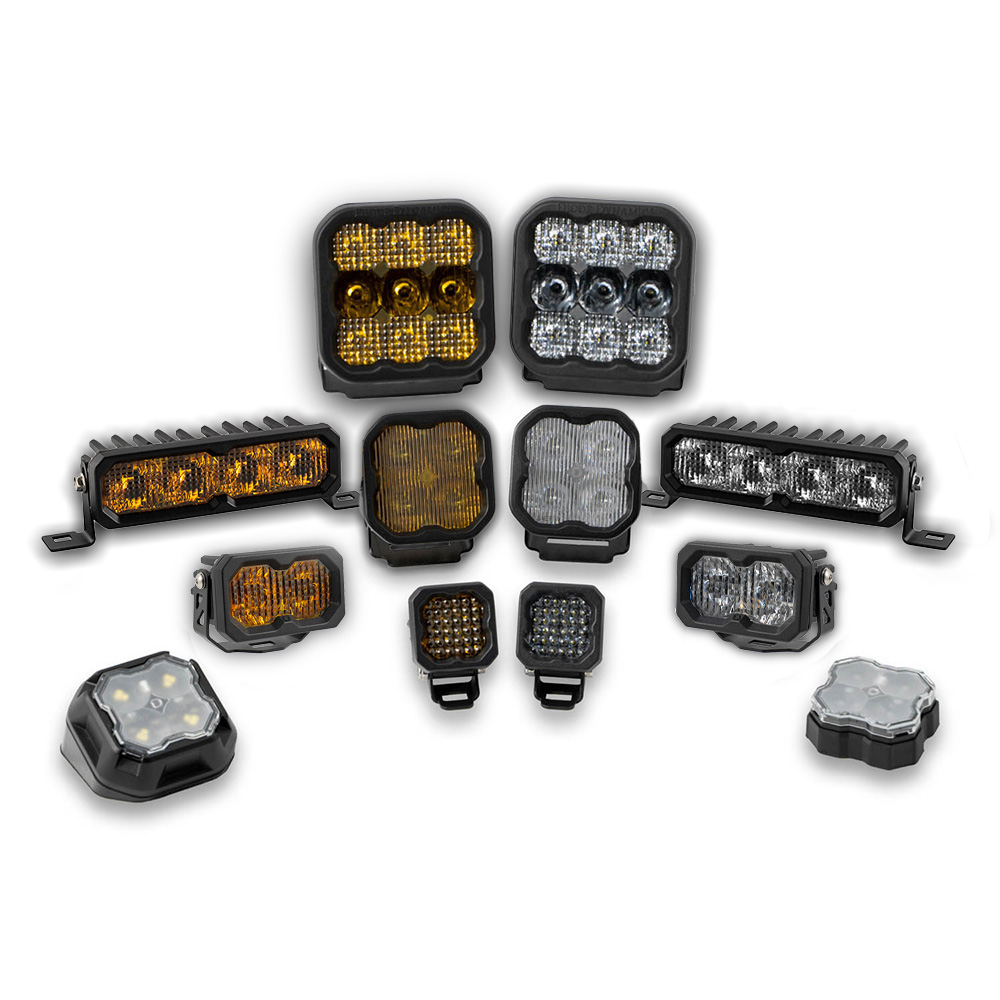
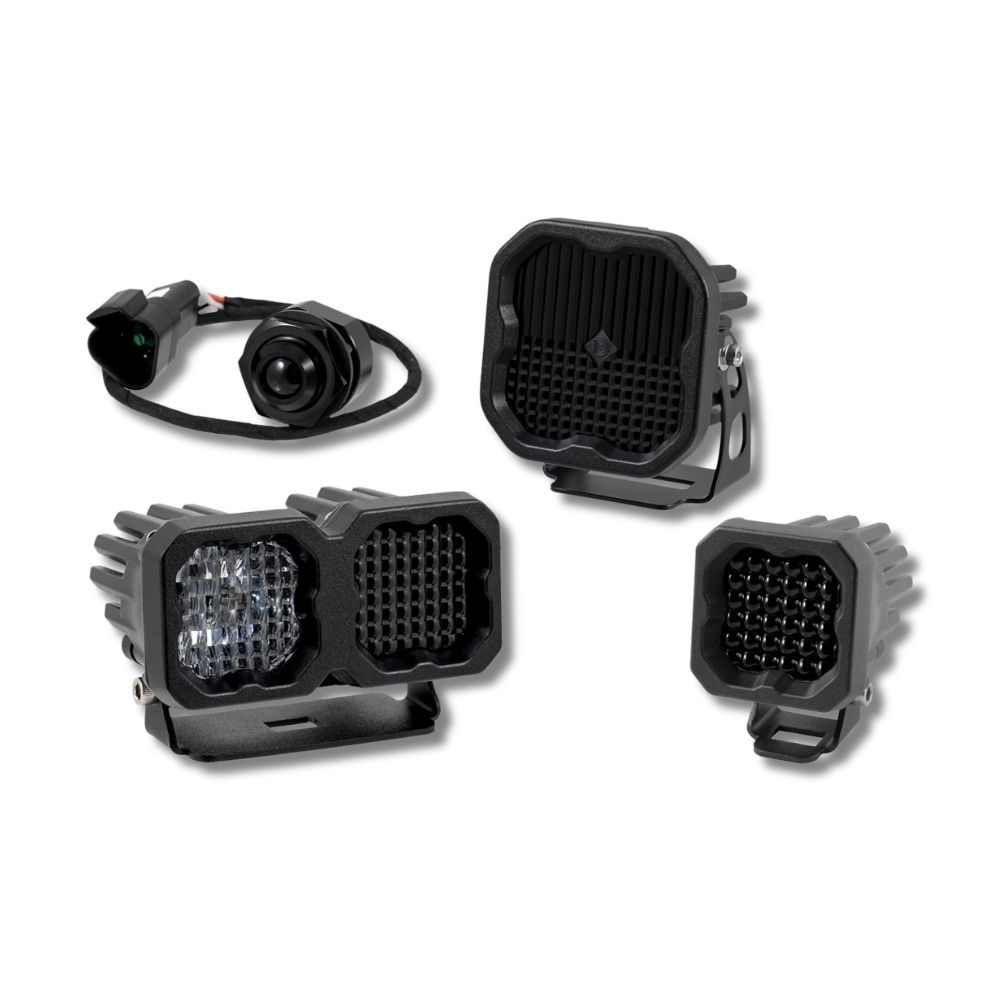
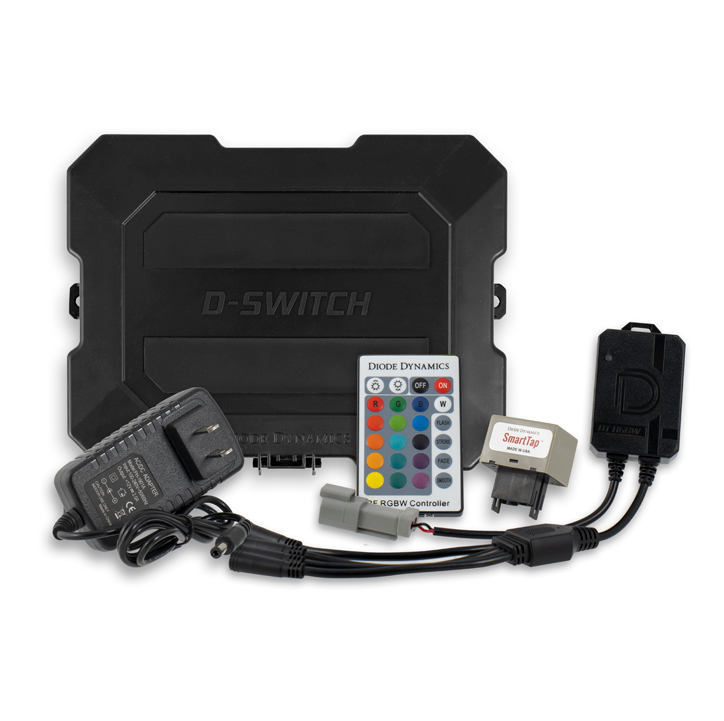

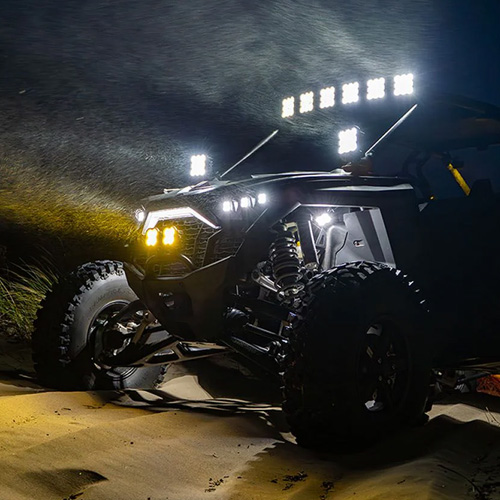
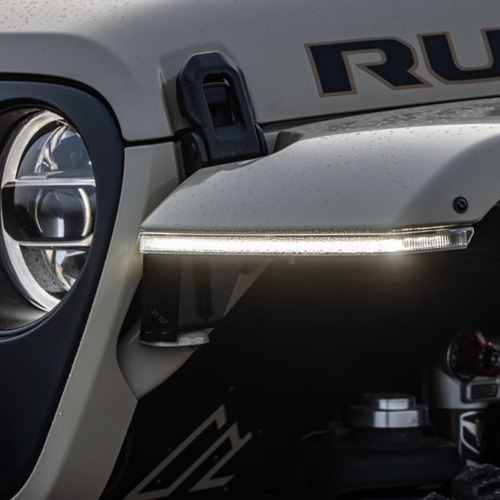

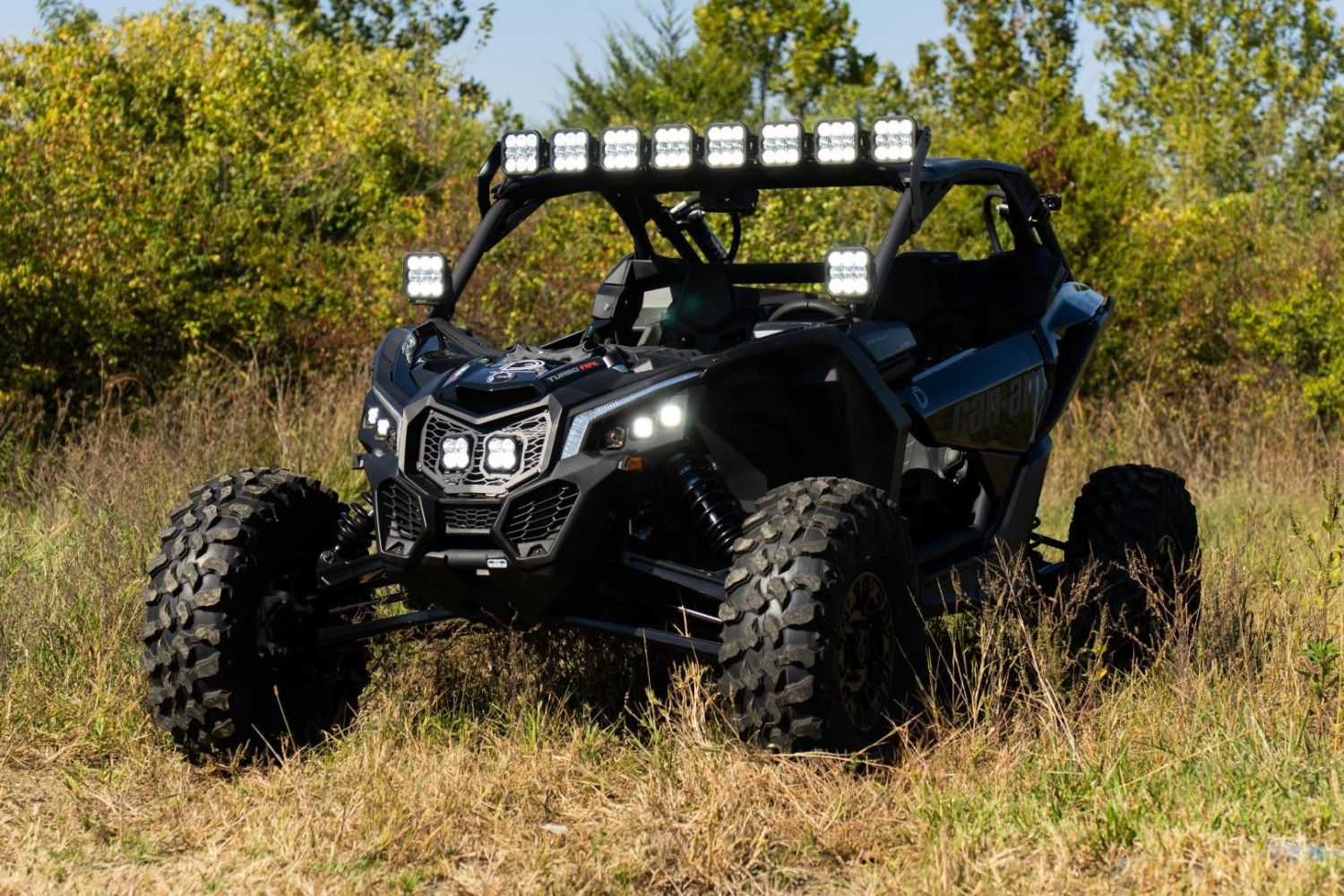
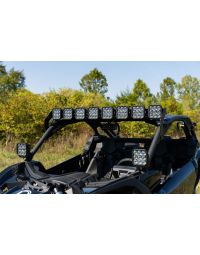
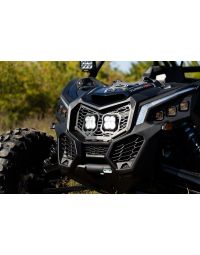
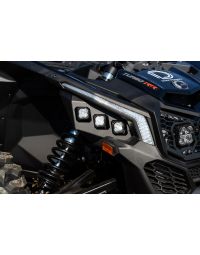
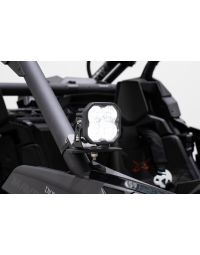
The SS5 CrossLink Roof LED Lightbar Kit for the 2017-2025 Can-Am Maverick X3 allows you to mount an eight-pod CrossLink light bar for incredible off-road illumination. This bolt-on, plug-and-play kit provides unmatched lighting performance, featuring selectable backlight colors and multiple beam patterns to enhance both visibility and style.
The kit is engineered and assembled in the USA, ensuring durability and reliability for even the toughest adventures. Its rugged stainless steel brackets and polycarbonate lenses are built to withstand harsh conditions, while the included wiring harness simplifies installation.
The following installation guide will provide detailed instructions for installing the SS5 CrossLink Roof Lightbar Kit on your Can-Am Maverick X3. Watch our installation video or continue reading for step-by-step instructions below!
Table of Contents
- Installation Video
- Installation Tools
- Installation Instructions
- Backlight Color Programming
- Backlight Color Reset
- Questions About the Installation?
- Where Can I Buy an SS5 Roof CrossLink LED Lightbar Kit for the 2017-2025 Can-Am Maverick X3?
Installation Video
Installation Tools
- 10mm socket
- 13mm wrench
- 13mm socket
- 18mm ratchet
- T30 Torx bit
- Trim removal tool
- Extension bar
Installation Instructions
Step 1 - Prepare the Passenger Seat and Console
Inside the vehicle, begin by disconnecting the passenger seat belt harness. Adjust the seat forward by pulling the lever toward you and pushing the seat up. Using an 18mm ratchet, remove the two gold locking nuts from behind the seat.
Next, adjust the seat all the way back and use a 13mm wrench and ratchet to remove the two front mounting bolts. Once all bolts are removed, carefully lift the seat out of the vehicle and set it aside.
Remove the access panel along the passenger-side console by gently pulling it away from the retention tabs, starting at the left corner. Repeat for the forward-most panel to access the battery.
Step 2 - Disconnect the Battery and Route the Harness
Use a 10mm socket to disconnect the positive lead from the battery and secure it away from the terminal. Peel back the rubber cover on the bus bar and loosen the positive and negative connections using a 10mm ratchet. Add the positive and negative leads from the CrossLink harness to the bus bar.
Route the switch leads to the desired location, avoiding moving parts or the drive shaft. Connect your own switch or use the provided toggle switch. Confirm functionality before final placement.
Install Rectangular Rocker Switch (Optional)
If desired, the included wiring harness can be controlled using the Diode Dynamics Rectangular Rocker Switch. To install the switch, disconnect the factory harness switch by unplugging it from the white connector on the switch lead. Connect the rectangular rocker switch directly to this connector.
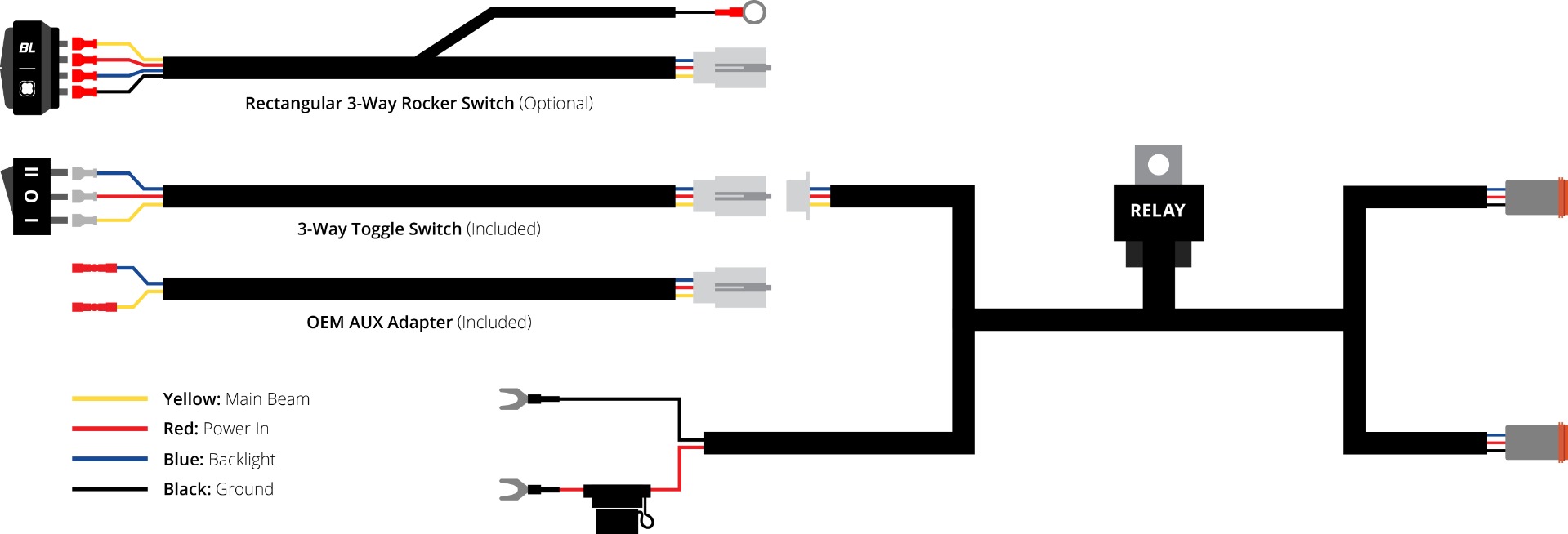
Route the switch wiring to your preferred mounting location and remove the factory switch blank from the dashboard or switch panel. Insert the rocker switch into the opening until it is fully seated.
The rocker switch features integrated backlighting and must be grounded for illumination. Attach the black wire with the ring terminal to a suitable chassis ground point on the vehicle.
Step 3 - Route the Harness to the Roof
Using a T30 Torx bit, remove one bolt on the outer cowl. Pull the cowl away and run the DT connector up and through to the roof.
On the passenger side of the roof, remove the two quick-release pins by turning them counterclockwise. Lift the roof slightly and continue running the harness along the roll bar to the front corner. Pull through approximately 5 inches of wire and secure the roof back in place with the quick-release pins by turning them clockwise while pressing down.
Step 4 - Mount the Roof Brackets
Position the mounting bracket on the passenger side of the roof and secure it using the included bolts and washers. On the inside of the roof, secure the bracket with the provided washers and locking nuts. Tighten everything using a 10mm socket and wrench. Repeat the same steps for the driver’s side.
Step 5 - Assemble the CrossLink Light Bar
Align the SS5 light bar to the first notch on the CrossLink hardware. For detailed assembly and adjustment steps, refer to the SS5 CrossLink lightbar instructions.
Once assembled, use a 10mm socket to secure both support link mounts to the underside of the CrossLink hardware after the third pod on both sides.
Step 6 - Mount the CrossLink Light Bar
With the help of a friend, lift the CrossLink light bar into place. Line up the top two mounting points with the through-holes of the brackets. Secure them with the included 10mm bolts on both sides. Center the top bolt and tighten it securely, then tighten the lower bolt.
While your friend gently pushes out on the CrossLink assembly, adjust the support link mounts to press against the roof. Tighten the mounts using a 13mm wrench and 13mm socket. Repeat this process for the other support link mount.
Step 7 - Connect and Test the Harness
Begin plugging the CrossLink harness into each pod, ensuring the male end of the harness is on the passenger side. Plug the DT connector from the roof harness into the CrossLink harness.
Reconnect the positive battery lead and test the functionality of the light bar. The main beams and selectable backlights should operate as intended.
Step 8 - Secure Wiring and Final Adjustments
Secure any loose wiring using zip ties and ensure all connections are routed away from hot or moving parts. Reinstall the panels, seat, and seatbelt harness by reversing the disassembly steps.
To adjust the light bar’s aim, loosen the 10mm bolts holding it in place and tilt it up or down to the desired position. Tighten the bolts to secure the aim.
The installation is now complete. Enjoy your new SS5 CrossLink Roof LED Lightbar Kit!
Backlight Color Programming
SS5 LED Pods offer multiple backlight color options, including White (default), Red, Blue, Green, Purple, Yellow, Amber, and Teal.
- Start with all backlight power OFF.
- Cycle backlight power ON and OFF three times within three seconds, spacing each ON press about one second apart.
- After the third cycle, the backlight will enter programming mode.
- Continue cycling power at the same steady pace to scroll through the available colors.
- When the desired color is displayed, leave the backlight ON.
- After five seconds, the color will save automatically and exit programming mode.
- Turn power OFF.
The selected color will appear any time backlight power is applied during normal operation.
For additional SS5 mounting, wiring, and backlight information, refer to the Diode Dynamics SS5 LED Pods Installation Guide.
Backlight Color Reset
If multiple SS5 LED Pods are connected to the same backlight circuit and the colors become unsynchronized, perform the following reset procedure.
- Enter backlight programming mode by cycling power ON and OFF three times, using the same one-second timing.
- Continue cycling power through all available colors twice. This requires at least sixteen total power cycles.
- After all colors have displayed twice, all connected lights will reset to White.
- Leave the backlight ON for five seconds to save the reset.
- Program the desired backlight color as outlined above if needed.
Questions About the Installation?
If you have any questions or issues installing the SS5 CrossLink Roof LED Lightbar Kit for the 2017-2025 Can-Am Maverick X3, please contact us for further assistance.
Where Can I Buy an SS5 Roof CrossLink LED Lightbar Kit for the 2017-2025 Can-Am Maverick X3?
If you’re ready to upgrade your Can-Am Maverick X3 with the SS5 CrossLink Roof LED Lightbar Kit, you can purchase one by clicking here or using our dealer locator to find a dealer near you.
Want to explore more off-road lighting solutions for your Can-Am Maverick X3? Check out our full range of LED lighting products here.
Want to know more about Diode Dynamics products? Visit DiodeDynamics.com and subscribe to our newsletter for new product releases and more!
This Installation Guide is for the following SKUs: DD7890, DD7891, DD7892, DD7893, DD7889P
Share This Post